
OIDC single sign-on
What this page covers
Section titled “What this page covers”Letting users in through the single sign-on the organization already has. One OIDC integration covers Azure AD, Okta, Google, and other providers that follow the specification, and several providers can run side by side. The login page shows a button for each enabled provider, redirects to none of them automatically, and keeps the local form in place.
What you need
Section titled “What you need”PUBLIC_BASE_URLin.env, from which the callback address is built. A provider without this value is marked as incompletely configured and stays off the login page.- An application registered on the identity provider side, giving you the issuer, client ID, and client secret.
- At least one administrator account that signs in with a local password. Unsealing the master key accepts local administrator credentials only.
How to set it up
Section titled “How to set it up”Directory and single sign-on now sit under External group mappings. Group claims are set in source details; role and user-group rules are on the external group mappings page. The old OIDC Providers address still opens; on Identity sources press Add provider.
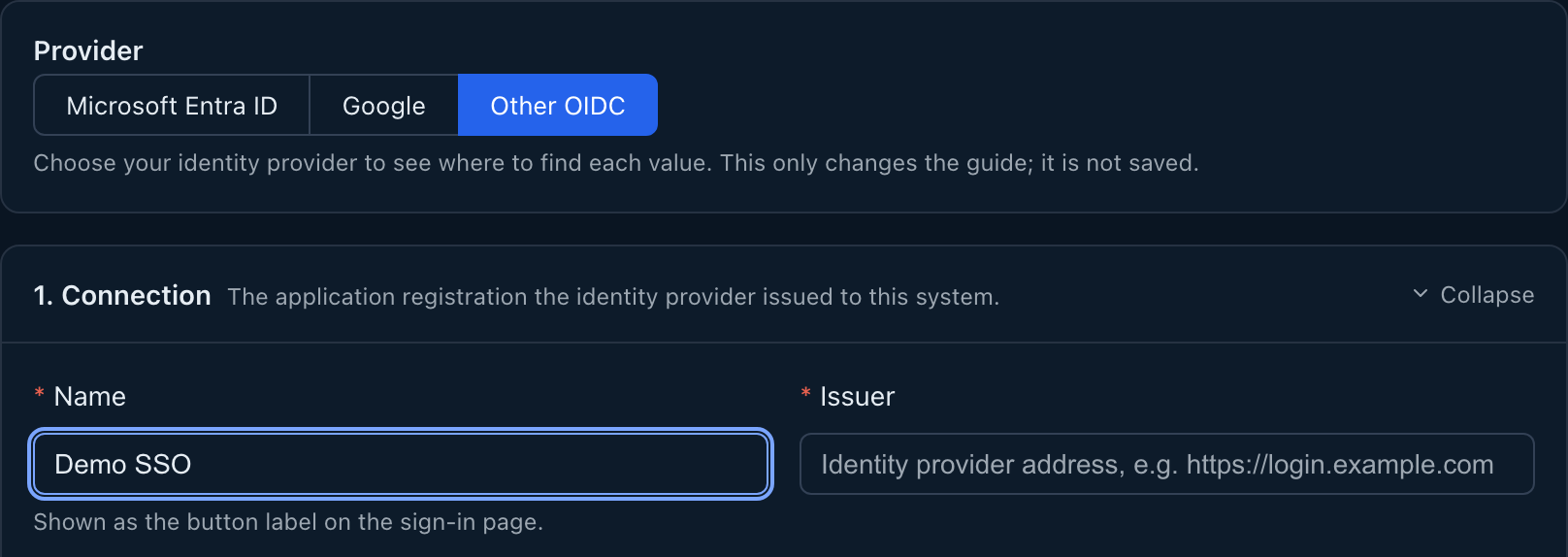
The add and edit pages start with a Provider choice: Microsoft Entra ID, Google, or Other OIDC. The page shows where to find each value at that provider, with the full steps folded below. Choosing Google on a new source fills in the issuer https://accounts.google.com; on an existing source the choice is detected from the issuer. The choice only controls the guide and the provider-specific parts of the form and is not saved itself. Then fill in:
- Display name: the name on the login page button, for example Azure AD.
- Issuer: has to be https. Fixed once created.
- Client ID: fixed once created. One issuer and client ID pair holds one configuration.
- Client secret: stored under envelope encryption; left empty on an update it keeps the existing value.
- Additional scopes:
openidis always sent, andprofileandemailcan be added.
Microsoft Entra ID
Section titled “Microsoft Entra ID”For an issuer on login.microsoftonline.com, the settings page points to the tenant, client values, group claim name, and group value in the Entra interface. Configure the group claim in Token configuration; do not add groups scope for it. The page warns if that scope is present. If the Entra token lacks claims needed by verified-email or email-domain admission rules, those rules do not pass.
Admission modes
Section titled “Admission modes”- Pre-bound accounts only: only accounts whose external identity was bound in advance can sign in.
- Automatic provisioning by rule: someone who matches the rules gets an account created at first login.
Provisioning rules combine the tenant identifier, the organization domain, the email domain, and a requirement that the email be verified. Rules of different kinds are joined with “and”, and several values of one kind with “or”. A rule that relies on the email domain alone is refused on a shared issuer, because that does not delimit an organization. The edit page shows the system verdict for the provider, shared across organizations or dedicated to this organization, with the reason. The “Always treat as shared across organizations” switch appears on sources the deployment declares dedicated and on sources where it is already on. Turned on, the stricter rules for shared issuers always apply; turned off, the source returns to the verdict the system would otherwise make.
Declare which issuers belong to your own organization with OIDC_DEDICATED_ISSUERS in .env.
Before you connect
Section titled “Before you connect”The “Before you connect” panel on identity source pages answers, item by item, whether the source is set up correctly:
- “Run discovery again” updates the discovery light with the result and its time. It also checks that the issuer the provider declares matches the one entered, and that the signing algorithms in its discovery document include one this system accepts; a failed check lists possible causes.
- The sign-in test is a link built from the public base URL, to copy and open in a private window or another browser; the sign-in page marks the sign-in option the link names.
- The panel shows the last sign-in attempt through the source in the past 30 days: the result, time, username, the reason in plain words, and what to do next. An error reported by the provider is shown in the provider’s own text.
- After a sign-in, the Client secret light shows whether the token exchange with the provider succeeded; the Group data light shows when groups were observed; the Mapping rules light is not shown as passed when there are no rules or all of them are disabled.
- The panel has a Refresh button and reloads when its window regains focus.
Enabling and disabling
Section titled “Enabling and disabling”The enable switch takes effect immediately. On disabling, the interface warns that existing sessions and connections obtained through that provider stop working at once. A provider that already has identities bound to it is disabled rather than deleted.
To keep a person from signing in through OIDC, disable their account; a disabled account signing in through OIDC is told that the account is disabled. When an account is deleted and the provider provisions accounts automatically, the person’s next sign-in creates the account again with the same username, and its roles come from the group mappings. When the provider admits pre-bound accounts only, the sign-in page says the account was deleted and asks the person to contact an administrator, who can create the account and bind the identity again.
What auditors can see
Section titled “What auditors can see”- A successful login leaves a record with the provider identifier and name, the authentication method, and which stage the login landed in (awaiting two-factor, awaiting binding, awaiting a password change, or holding a full session).
- The first login under automatic provisioning leaves an account creation record as well.
- A failed credential exchange is recorded as a failure; a login that fails the admission rules is recorded as a refusal, naming the rule that did not pass.
- A disabled account signing in through OIDC is recorded as a refusal.
- A login from a source address outside the account’s allowed list is recorded as a refusal, with the basis for the decision.
- The authentication method and the provider are noted together, so single sign-on can be told apart from local logins in the existing audit views.